
Getting started
Sign in, find your way around, and understand what each part of your dashboard does.
Welcome aboard. This is the quick tour: how to sign in, where you land, and what each part of your dashboard does. Your account is already set up when you start with us, so there is nothing to install or configure. You just log in and go.
Sign in
-
Click "Log in"
You will find the Log in link in the top right of the site.
-
Land on your dashboard
After signing in you arrive at Your customers. This is your home base.
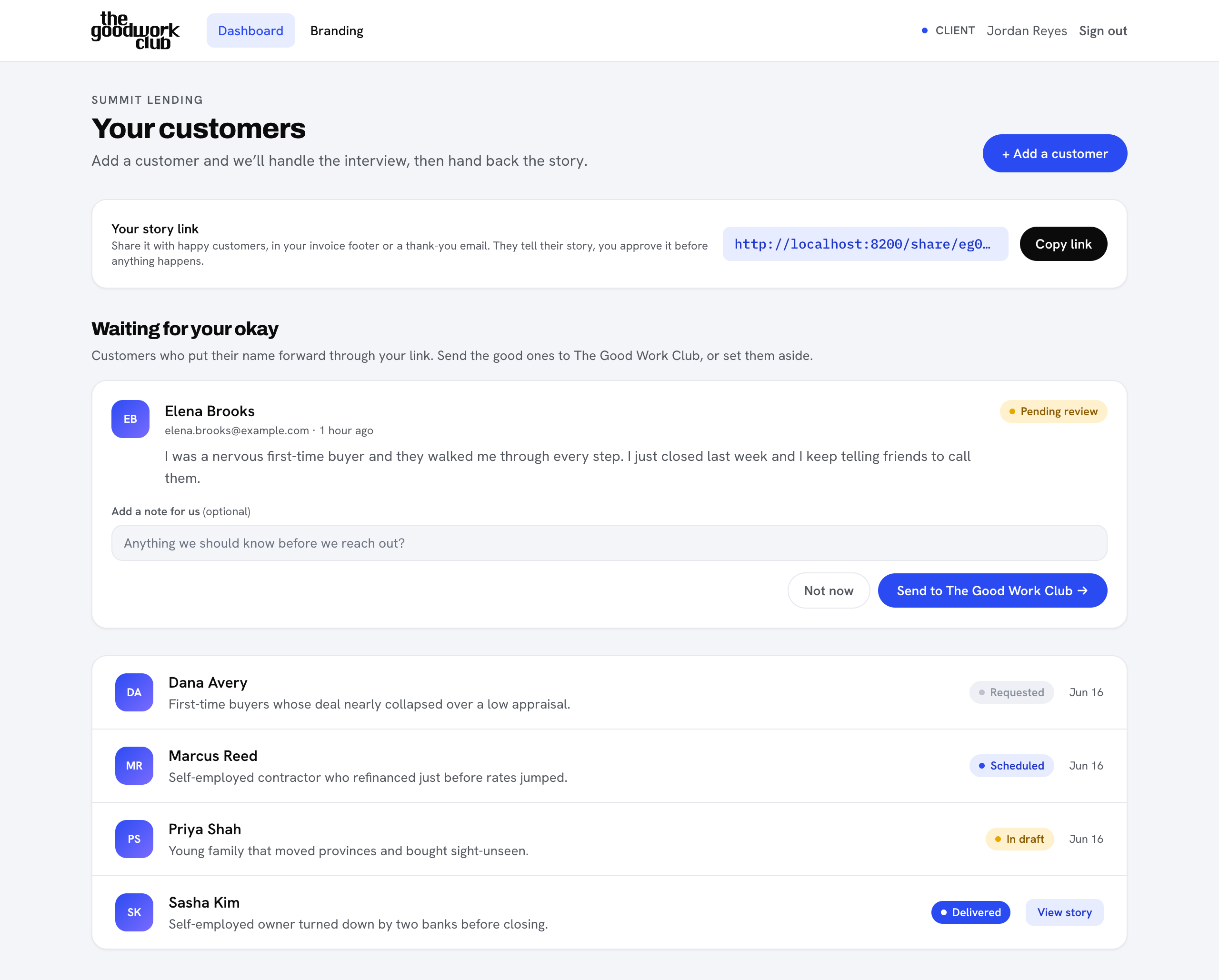
A tour of the dashboard
The top navigation has Dashboard and Branding, with Sign out on the right. The page itself holds everything you need:
- A + Add a customer button in the top right. This is how you put a customer forward for a story. See Add a customer.
- A Your story link bar with a Copy link button, so customers can volunteer themselves. See Share your link.
- A Waiting for your okay section, which appears when customers use your link and need a quick yes from you. See Review submissions.
- The list of your customers, each showing a status: Requested, Scheduled, Interviewed, In draft, or Delivered.
Tip
When a story reaches Delivered, a View story button appears on that customer's row. From there you can read it and start putting it to work. See Track and use your stories.
Want to set your colours and logo before you invite anyone? Head to Branding. Otherwise, your next step is to add your first customer.