
Review and approve submissions
Decide which customers go forward, add a note for us, or set one aside.
When a customer fills out your share link, they do not go straight into the pipeline. They land in your dashboard first, so you stay in control. Nothing reaches our team until you give the okay.
Good to know
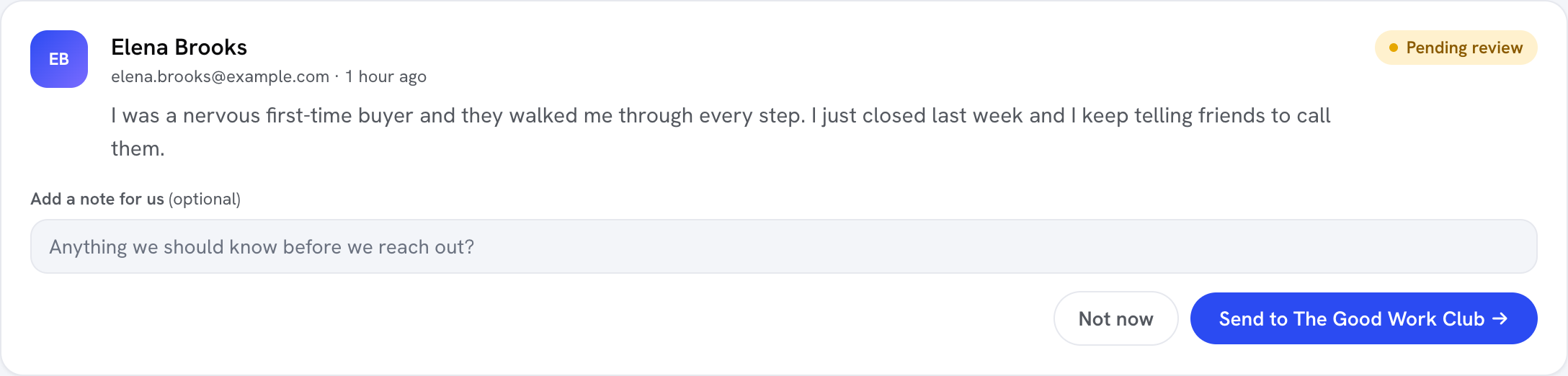
New submissions appear in the Waiting for your okay section at the top of your dashboard, each marked Pending review. Every card shows the customer's name, email, when they submitted, and the message they wrote.
Review a submission step by step
-
Open the card
Read the customer's name, email, and the message they wrote. This is usually enough to decide whether their story is one you want to tell.
-
Add a private note (optional)
Use the Add a note for us (optional) field to flag anything we should know before we reach out. Only our team sees this.
-
Make your choice
Click Send to The Good Work Club to approve and pass it to us, or Not now to set it aside.
What each choice does
- Send to The Good Work Club (the green button) approves the customer and notifies our team. They move into your normal list as Requested, and we invite them and run the interview from there.
- Not now sets the customer aside and sends nothing. They are marked Declined, and the customer is never contacted.
Tip
Not now is quiet: the customer hears nothing either way, so there is no awkwardness if you pass.
Once you approve someone, you can follow their progress alongside everyone else in track and use.